Ensure a safe online environment for children. Compare parental control software for monitoring and filtering internet content.
Comparing Parental Control Software for Internet Safety
In today's hyper-connected world, children are exposed to the internet at increasingly younger ages. While the internet offers incredible educational and entertainment opportunities, it also presents significant risks, from inappropriate content and cyberbullying to online predators and excessive screen time. For parents, navigating this digital landscape can feel overwhelming. That's where parental control software comes in. These tools are designed to help you monitor, manage, and filter your children's online activities, providing a crucial layer of protection and peace of mind.
But with so many options available, how do you choose the right one for your family? This comprehensive guide will compare some of the leading parental control software solutions, discussing their features, use cases, product comparisons, and pricing to help you make an informed decision.
Understanding Parental Control Software What It Does and Why You Need It
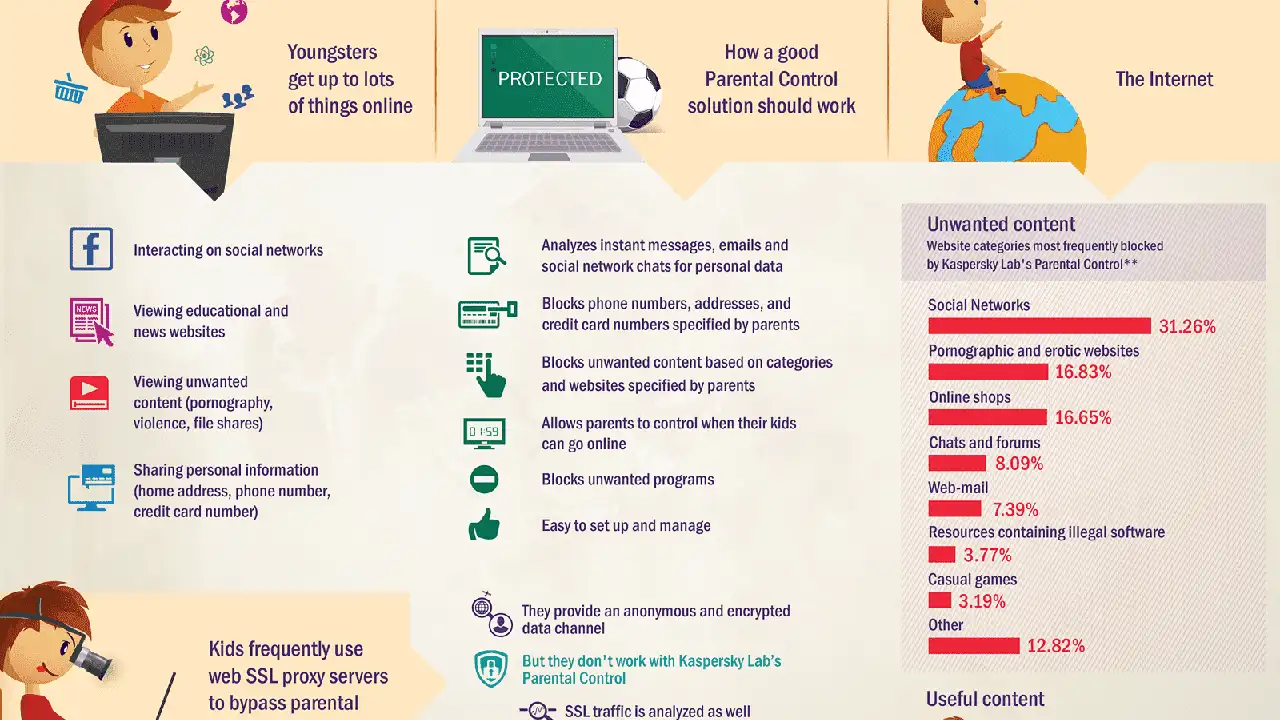
Parental control software isn't about spying on your kids; it's about creating a safer digital environment. Think of it as a digital guardian, helping you set boundaries and protect your children from the darker corners of the internet. These tools typically offer a range of functionalities, including:
- Content Filtering: Blocking access to inappropriate websites, apps, and content based on categories (e.g., violence, pornography, gambling).
- Screen Time Management: Setting limits on how long children can use devices or specific apps, and scheduling internet access.
- Activity Monitoring: Tracking website history, search queries, app usage, and sometimes even social media activity.
- Location Tracking: Knowing your child's physical location through their device.
- App Blocking: Preventing access to specific applications.
- Cyberbullying Alerts: Notifying parents of potentially harmful or concerning interactions on social media or messaging apps.
- Reporting: Providing detailed reports on your child's online behavior.
The 'why' is simple: children, especially younger ones, lack the judgment and critical thinking skills to navigate the internet safely on their own. Parental control software empowers you to guide them, teach them responsible digital habits, and intervene when necessary. It's a tool for education and protection, not just restriction.
Key Features to Look For in Parental Control Solutions
When evaluating different parental control software, consider these essential features:
- Device Compatibility: Does it work across all your family's devices (Windows, macOS, Android, iOS, Chromebooks)?
- Ease of Use: Is the interface intuitive for both parents and children? Is it easy to set up and manage?
- Customization: Can you tailor settings for individual children based on their age and maturity level?
- Real-time Alerts: Does it notify you immediately of concerning activities or attempts to bypass controls?
- Tamper-Proofing: How difficult is it for a tech-savvy child to disable or uninstall the software?
- Reporting and Analytics: Does it provide clear, actionable insights into your child's online behavior?
- Customer Support: What kind of support is available if you encounter issues?
- Privacy: How does the company handle your family's data?
Leading Parental Control Software Products and Their Strengths
Let's dive into some of the most popular and highly-rated parental control software options available today, comparing their unique selling points and ideal use cases.
1. Qustodio Comprehensive Digital Safety for Families
Qustodio is often lauded for its comprehensive feature set and user-friendly interface, making it a top choice for many families. It offers robust content filtering, screen time management, and detailed activity reports across a wide range of devices.
Key Features of Qustodio
- Excellent Content Filtering: Blocks inappropriate websites and apps across 30+ categories, with customizable rules for each child.
- Flexible Screen Time Limits: Set daily time limits, create schedules for device usage, and even pause the internet instantly.
- App Blocking and Monitoring: Block specific apps or set time limits for individual applications. Monitors app usage on Android and iOS.
- Location Tracking and Geofencing: See your child's location in real-time and get alerts when they enter or leave predefined zones.
- YouTube Monitoring: Tracks YouTube searches and videos watched, a crucial feature given YouTube's popularity with kids.
- Call and SMS Monitoring (Android only): Monitors calls and texts, providing an extra layer of insight into communication.
- Detailed Activity Reports: Provides a clear dashboard of your child's online activity, including websites visited, searches, and app usage.
Use Cases for Qustodio
Qustodio is ideal for families with children of varying ages who need a robust, all-in-one solution. Its strong content filtering and screen time management make it perfect for younger children, while its monitoring features can be valuable for older kids and teens. If you have a mix of Android and iOS devices, Qustodio handles both well, though iOS monitoring is more limited due to Apple's restrictions.
Pricing for Qustodio
Qustodio offers a free version with basic features (limited device support and reporting) and several paid plans:
- Small Plan: Covers up to 5 devices, typically around $54.95 per year.
- Medium Plan: Covers up to 10 devices, typically around $96.95 per year.
- Large Plan: Covers up to 15 devices, typically around $137.95 per year.
Prices can vary based on promotions and region. They often offer a 30-day money-back guarantee.
2. Bark AI Powered Social Media Monitoring and Cyberbullying Detection
Bark takes a different approach to parental control, focusing heavily on monitoring social media, email, and text messages for potential issues like cyberbullying, depression, drug use, and sexual content. Instead of blocking everything, Bark uses AI to alert parents to potential problems, fostering trust and open communication.
Key Features of Bark
- Advanced AI Monitoring: Scans over 30+ social media platforms, email, and text messages for concerning keywords, phrases, and images.
- Contextual Alerts: Instead of showing you everything, Bark only alerts you to potential problems, providing context and suggested actions.
- Screen Time Management: Set schedules and limits for internet access and app usage.
- Website Filtering: Blocks access to specific websites or categories.
- Location Sharing: Allows children to check in with their location and parents to request location updates.
- No Content Blocking by Default: Bark's primary focus is on monitoring and alerting, not outright blocking, though filtering options are available.
Use Cases for Bark
Bark is particularly well-suited for families with pre-teens and teenagers who are active on social media and messaging apps. If your primary concern is cyberbullying, exposure to inappropriate content on social platforms, or mental health issues, Bark's AI-driven monitoring is incredibly powerful. It's less about strict blocking and more about fostering a dialogue and intervening when necessary, making it a good fit for parents who want to give their older children more autonomy while still having a safety net.
Pricing for Bark
Bark offers two main plans:
- Bark Premium: Covers unlimited devices and monitors texts, emails, and 30+ apps and social media platforms. Typically around $14 per month or $99 per year.
- Bark Jr.: Focuses on screen time management, website filtering, and location tracking. Typically around $5 per month or $49 per year.
They often offer a 7-day free trial for Bark Premium.
3. Norton Family Premier Robust Protection from a Trusted Name
From the well-known cybersecurity company, Norton Family Premier offers a solid suite of parental control features designed to protect children across various devices. It's known for its reliable web filtering and detailed activity reports.
Key Features of Norton Family Premier
- Web Supervision: Blocks inappropriate websites and provides insights into sites visited.
- Time Supervision: Set daily time limits for device usage and create schedules for internet access.
- Search Supervision: Monitors search terms used on popular search engines.
- Video Supervision: Tracks videos watched on YouTube and Hulu.
- App Supervision: Monitors and blocks specific apps on Android and Windows.
- Location Supervision: Tracks your child's location and provides location history.
- Instant Lock: Allows parents to instantly lock a child's device.
- Email Alerts: Notifies parents of concerning activities.
Use Cases for Norton Family Premier
Norton Family Premier is a strong contender for families already using other Norton products or those looking for a reliable, traditional parental control solution with a focus on web filtering and screen time. It's particularly effective for Windows and Android devices. If you value a well-established brand with a history in cybersecurity, Norton Family is a safe bet.
Pricing for Norton Family Premier
Norton Family Premier is often included as part of Norton 360 Deluxe or Norton 360 Premium security suites. It can also be purchased as a standalone product, typically around $49.99 per year for unlimited devices. They usually offer a 30-day money-back guarantee.
4. Net Nanny Advanced Content Filtering and Internet Management
Net Nanny has been a player in the parental control space for a long time, and it continues to offer powerful content filtering technology. Its real-time content analysis engine is a standout feature, allowing it to dynamically block or allow content based on context.
Key Features of Net Nanny
- Dynamic Content Filtering: Uses AI to analyze web content in real-time, blocking not just specific sites but also inappropriate phrases and images within otherwise benign pages.
- Screen Time Management: Set daily limits, create schedules, and pause the internet instantly.
- App Blocking: Block specific apps on Android and iOS.
- Location Tracking: See your child's location on a map.
- YouTube Monitoring: Monitors YouTube searches and videos.
- Profanity Masking: Can mask profanity on web pages.
- Family Feed: A centralized dashboard showing your child's online activity.
Use Cases for Net Nanny
Net Nanny is an excellent choice for parents who prioritize advanced content filtering, especially for younger children who might accidentally stumble upon inappropriate content. Its dynamic filtering is more sophisticated than simple URL blocking. If you're concerned about nuanced content that might slip past other filters, Net Nanny's technology is a strong advantage. It's also good for families with a mix of device types.
Pricing for Net Nanny
Net Nanny offers several plans based on the number of devices:
- 1 Device Plan: Typically around $39.99 per year.
- 5 Devices Plan: Typically around $54.99 per year.
- 10 Devices Plan: Typically around $89.99 per year.
They often provide a 14-day money-back guarantee.
5. Google Family Link Free and Integrated for Android and Chromebooks
For families primarily using Android devices and Chromebooks, Google Family Link offers a free and integrated solution directly from Google. While not as feature-rich as paid options, it provides essential controls for managing younger children's devices.
Key Features of Google Family Link
- App Approvals: Parents can approve or block apps their child wants to download from the Google Play Store.
- Screen Time Limits: Set daily screen time limits and device bedtime schedules.
- Device Locking: Remotely lock your child's device.
- Location Tracking: See your child's device location.
- Activity Reports: View reports on app usage.
- Content Restrictions: Manage content restrictions on Google Play (apps, movies, books).
Use Cases for Google Family Link
Google Family Link is perfect for parents of younger children who primarily use Android phones or tablets and Chromebooks. It's a fantastic free option for getting started with basic parental controls without investing in a paid subscription. It's particularly useful for managing app downloads and screen time. However, it lacks advanced features like social media monitoring, comprehensive web filtering beyond Google services, and robust iOS support.
Pricing for Google Family Link
Google Family Link is completely free to use.
Comparing the Products Which One is Right for Your Family
Choosing the best parental control software depends heavily on your family's specific needs, your children's ages, and the devices they use. Here's a quick comparison to help you decide:
- For Comprehensive Protection and Younger Kids: Qustodio is a strong all-rounder with excellent content filtering, screen time, and monitoring across multiple platforms.
- For Teens and Social Media Concerns: Bark excels in monitoring social media and messaging for cyberbullying and other serious issues, fostering trust by only alerting to problems.
- For Reliable Web Filtering and Screen Time from a Trusted Brand: Norton Family Premier offers a solid, traditional approach, especially good for Windows and Android users.
- For Advanced Real-time Content Filtering: Net Nanny's dynamic content analysis is superior for catching nuanced inappropriate content.
- For Free Basic Controls on Android/Chromebooks: Google Family Link is an excellent starting point for younger children on Google-centric devices.
Consider these scenarios:
- Scenario 1: You have young children (under 10) and want strict content filtering and screen time limits across all devices. Qustodio or Net Nanny would be excellent choices.
- Scenario 2: You have teenagers who are very active on social media, and you're concerned about cyberbullying or online predators, but you don't want to constantly monitor their every move. Bark is the ideal solution here.
- Scenario 3: You're on a budget and primarily need to manage an Android phone or Chromebook for a younger child. Google Family Link is your best free option.
- Scenario 4: You want a well-rounded solution from a reputable cybersecurity company, especially if you already use their antivirus. Norton Family Premier fits this bill.
Setting Up and Using Parental Control Software Best Practices
Once you've chosen your software, proper implementation is key. Here are some best practices:
- Talk to Your Kids: This is perhaps the most important step. Explain why you're using parental controls. Frame it as a safety measure, not a punishment. Discuss online dangers and responsible digital citizenship.
- Customize Settings by Child: Don't use a one-size-fits-all approach. Adjust content filters, screen time limits, and monitoring levels based on each child's age, maturity, and specific needs.
- Start Gradually: For older children, introduce controls gradually. Don't suddenly lock down everything. Allow them to earn more freedom as they demonstrate responsible behavior.
- Regularly Review Reports: Don't just set it and forget it. Regularly check the activity reports to stay informed and adjust settings as needed.
- Educate Yourself: Stay informed about new apps, online trends, and potential risks your children might encounter.
- Be a Role Model: Your own digital habits influence your children. Practice what you preach regarding screen time and online behavior.
- Don't Rely Solely on Software: Parental control software is a tool, not a complete solution. Open communication, education, and active parenting are still the most effective ways to ensure your child's online safety.
- Secure Your Accounts: Make sure your parental control software account is secured with a strong, unique password and two-factor authentication if available.
The Evolving Landscape of Digital Safety for Children
The internet is constantly changing, and so are the challenges children face online. New apps emerge, new trends take hold, and new risks appear. This means that parental control software also needs to evolve. Look for providers that regularly update their software to address new threats and support new platforms.
Ultimately, the goal isn't to shield your children from the internet entirely, but to equip them with the skills and protection they need to navigate it safely and responsibly. Parental control software is a powerful ally in this ongoing effort, providing you with the tools to monitor, guide, and protect your children in their digital lives.
By understanding the options available and implementing them thoughtfully, you can create a safer, more positive online experience for your entire family.
:max_bytes(150000):strip_icc()/277019-baked-pork-chops-with-cream-of-mushroom-soup-DDMFS-beauty-4x3-BG-7505-5762b731cf30447d9cbbbbbf387beafa.jpg)