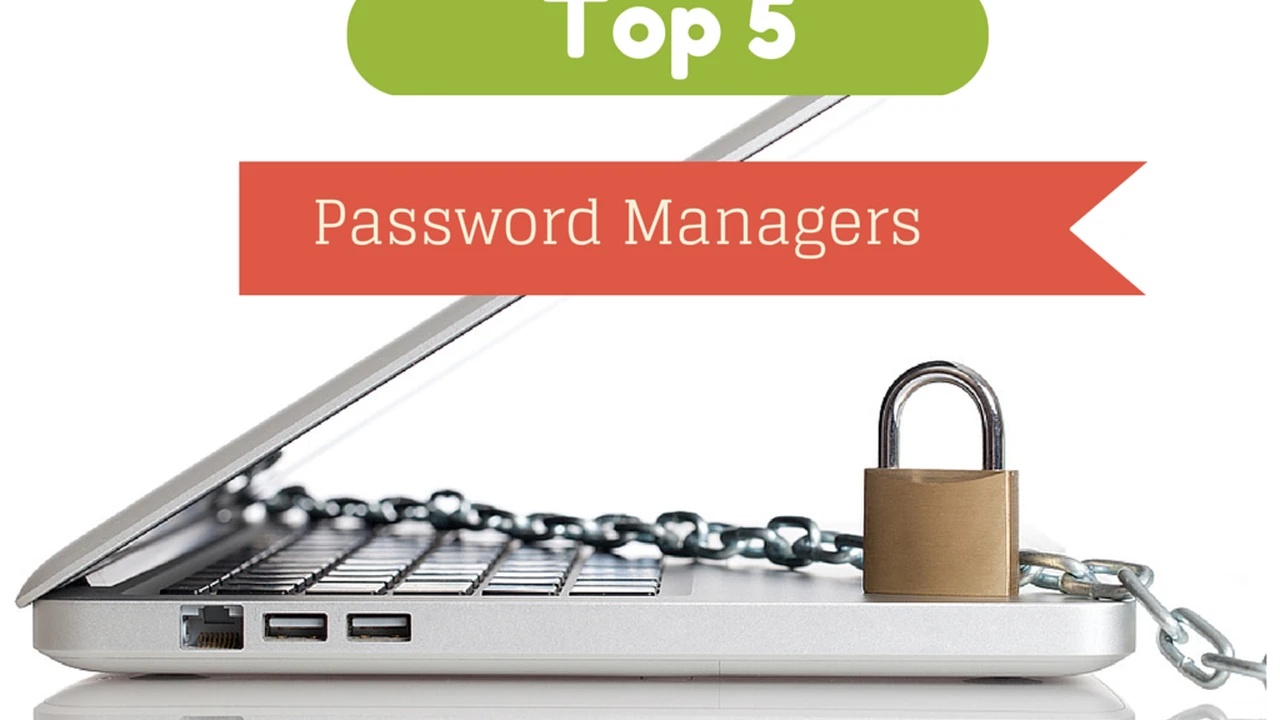
5 Best Password Managers for Secure Logins
Hey there! Ever feel like you're juggling a million passwords in your head? Or maybe you're one of those folks who uses the same password for everything (we've all been there, no judgment!). In today's digital world, where everything from your banking to your social media is online, having strong, unique passwords is super important. But let's be real, remembering them all is a nightmare. That's where password managers come in – they're like your personal digital vault, keeping all your login details safe and sound. This guide will walk you through the best options out there, helping you pick the perfect one to keep your digital life secure and stress-free.
Why Use a Password Manager Understanding Digital Security
You might be thinking, "Do I really need another app?" The answer, my friend, is a resounding yes! Think about it: every online account you have is a potential entry point for hackers. If you use weak or reused passwords, you're basically leaving the front door wide open. A password manager solves this by generating super strong, unique passwords for each of your accounts and remembering them for you. This means you only need to remember one master password to unlock your entire digital life. It's a game-changer for your online security and peace of mind. Plus, many come with extra features like secure notes, identity protection, and even dark web monitoring, adding layers of protection you didn't even know you needed.
Key Features to Look For Choosing the Right Password Manager
When you're diving into the world of password managers, it can feel a bit overwhelming with all the options. But don't sweat it! Here are the main things you should keep an eye out for to make sure you're picking the best fit for your needs:
- Strong Encryption: This is non-negotiable. Your password manager should use industry-standard, military-grade encryption (like AES-256) to protect your data. This means even if someone somehow gets their hands on your encrypted vault, they won't be able to read your passwords.
- Cross-Platform Compatibility: You probably use multiple devices – a phone, a laptop, maybe a tablet. Your password manager should work seamlessly across all of them, whether you're on Windows, macOS, Android, or iOS. Browser extensions are also a huge plus for easy auto-filling.
- Two-Factor Authentication (2FA): This adds an extra layer of security. Even if someone guesses your master password, they'd still need a second piece of information (like a code from your phone) to get in. Make sure your chosen manager supports robust 2FA options.
- Password Generator: A good password manager doesn't just store passwords; it helps you create them. Look for one that can generate long, complex, and truly random passwords that are impossible to guess.
- Auto-fill and Auto-save: This is where the convenience factor really shines. The manager should be able to automatically fill in your login details on websites and apps, and also prompt you to save new logins as you create them.
- Secure Sharing: Sometimes you need to share a password with a family member or colleague. A secure sharing feature allows you to do this without compromising security.
- Security Audit/Vault Health: Many managers offer features that check the strength of your existing passwords, identify reused ones, and alert you to compromised accounts. This is super helpful for improving your overall password hygiene.
- Emergency Access: What happens if you're unable to access your vault? An emergency access feature allows trusted individuals to access your passwords under specific conditions.
- User-Friendly Interface: Let's be honest, if it's too complicated to use, you won't use it. Look for an intuitive design that makes managing your passwords a breeze.
- Cost: Many offer free tiers with basic features, which might be enough for some. Premium versions unlock more advanced features like dark web monitoring, secure file storage, and family plans. Consider your budget and what features are essential for you.
Top 5 Password Managers Detailed Comparison and Features
Alright, let's get to the good stuff! Here are our top picks for password managers, each with its own strengths and ideal use cases. We'll break down their features, pricing, and who they're best for.
1. LastPass The All-Rounder for Everyday Users
LastPass is often the first name that comes to mind when you talk about password managers, and for good reason. It's incredibly user-friendly, packed with features, and offers a solid free tier that's perfect for individuals just starting out with password management.
Key Features of LastPass Password Manager
- Intuitive Interface: LastPass boasts a clean and easy-to-navigate interface, making it simple for even non-tech-savvy users to get started.
- Excellent Auto-fill and Auto-save: Its browser extensions and mobile apps are fantastic at detecting login fields and automatically filling in your credentials. It also prompts you to save new passwords as you create them.
- Secure Notes and Form Filling: Beyond passwords, you can securely store sensitive information like credit card details, addresses, and secure notes. It can also auto-fill forms for you, saving a ton of time.
- Password Generator: Generates strong, unique passwords with customizable length and character types.
- Dark Web Monitoring (Premium): Alerts you if your email addresses or other personal information appear in known data breaches.
- Emergency Access: Allows you to designate trusted contacts who can access your vault in an emergency.
- Multi-Factor Authentication (MFA): Supports various MFA options, including authenticator apps, YubiKey, and fingerprint/face ID.
Use Cases and Scenarios for LastPass
- Individuals: The free version is excellent for personal use, offering unlimited password storage across one device type (either mobile or desktop).
- Families: The Family plan allows up to six users to share a vault, making it easy to manage shared accounts and ensure everyone has strong passwords.
- Small Businesses: LastPass Business offers features like centralized administration, user provisioning, and reporting, making it suitable for small teams.
Pricing for LastPass
- Free: Unlimited passwords on one device type (mobile OR desktop). Basic features.
- Premium: Around $3/month. Unlimited device types, dark web monitoring, emergency access, advanced MFA.
- Families: Around $4/month. Up to 6 users, shared folders, all Premium features.
- Business: Starts around $4/user/month. Centralized admin, reporting, and more.
Pros and Cons of LastPass
- Pros: Very user-friendly, robust free tier, excellent auto-fill, strong security features, good for families and small teams.
- Cons: Free tier limits to one device type, some past security incidents (though they've significantly improved their security posture).
2. 1Password The Premium Choice for Security and Features
1Password is often lauded for its robust security architecture, sleek design, and comprehensive feature set. It's a favorite among tech enthusiasts and those who prioritize top-tier security and a polished user experience. While it doesn't offer a free tier, its paid plans are well worth the investment for the peace of mind and advanced capabilities it provides.
Key Features of 1Password Password Manager
- Travel Mode: A unique feature that allows you to temporarily remove sensitive data from your devices when crossing borders, making it inaccessible until you disable Travel Mode.
- Watchtower: A powerful security audit tool that alerts you to weak, reused, or compromised passwords, and also monitors for dark web breaches.
- Secure Document Storage: Beyond passwords, you can securely store files, documents, and other sensitive information directly within your vault.
- SSH Key Management: A great feature for developers and IT professionals, allowing secure storage and management of SSH keys.
- Identity and Credit Card Storage: Securely stores personal information and credit card details for easy form filling.
- Strong Encryption and Security Audits: 1Password uses a strong, client-side encryption model, meaning your data is encrypted on your device before it ever reaches their servers. They also undergo regular independent security audits.
- Excellent Cross-Platform Support: Seamless experience across all major operating systems and browsers, with native apps that feel right at home on each platform.
Use Cases and Scenarios for 1Password
- Individuals who prioritize security: If you want the absolute best in terms of security features and a polished experience, 1Password is a fantastic choice.
- Families: The Family plan is excellent for sharing passwords securely among family members, with individual vaults and shared vaults.
- Professionals and Developers: Features like SSH key management and secure document storage make it particularly appealing to those with more advanced security needs.
- Small to Large Businesses: 1Password Business and Enterprise offer robust team management, provisioning, and reporting features.
Pricing for 1Password
- Individual: Around $3/month. All core features, 1GB document storage.
- Family: Around $5/month. Up to 5 users, shared vaults, 1GB document storage per person.
- Business: Starts around $8/user/month. Team management, activity logs, and more.
Pros and Cons of 1Password
- Pros: Top-tier security, excellent user interface, unique features like Travel Mode and SSH key management, strong cross-platform support.
- Cons: No free tier, slightly higher price point than some competitors.
3. Bitwarden The Open-Source and Budget-Friendly Option
Bitwarden stands out as an open-source password manager that offers an incredibly generous free tier and competitive pricing for its premium features. If you're looking for a secure, feature-rich option without breaking the bank, Bitwarden is definitely one to consider. Its open-source nature means its code is publicly auditable, which many users appreciate for transparency and trust.
Key Features of Bitwarden Password Manager
- Open-Source: The code is publicly available for anyone to inspect, which fosters transparency and community trust.
- Unlimited Passwords (Free): Unlike many competitors, Bitwarden's free tier offers unlimited password storage across all devices. This is a huge selling point!
- Strong Encryption: Uses AES-256 bit encryption, salted hashing, and PBKDF2 for robust security.
- Self-Hosting Option: For the truly tech-savvy, Bitwarden allows you to self-host your vault on your own server, giving you complete control over your data.
- Secure Sharing (Premium): Allows secure sharing of passwords and other items with other Bitwarden users.
- Two-Factor Authentication: Supports various 2FA methods, including authenticator apps, email, and YubiKey (premium for advanced options).
- Password Generator and Security Audit: Includes a robust password generator and a vault health report to identify weak or reused passwords.
Use Cases and Scenarios for Bitwarden
- Budget-Conscious Users: The free tier is incredibly powerful and suitable for most individual users who don't need advanced features.
- Open-Source Advocates: If you value transparency and community-driven development, Bitwarden is a perfect fit.
- Tech-Savvy Individuals and Businesses: The self-hosting option provides ultimate control for those who want it.
- Small Teams and Families: The premium family and business plans offer excellent value for secure sharing and team management.
Pricing for Bitwarden
- Free: Unlimited passwords, sync across all devices, basic 2FA.
- Premium: Around $10/year. Advanced 2FA options, Bitwarden Authenticator, emergency access, 1GB encrypted file attachments.
- Families: Around $40/year. Up to 6 users, shared vaults, all Premium features.
- Teams/Enterprise: Starts around $3/user/month. Centralized admin, user groups, and more.
Pros and Cons of Bitwarden
- Pros: Generous free tier, open-source, strong security, self-hosting option, very affordable premium plans.
- Cons: Interface might feel less polished than LastPass or 1Password for some users, advanced features are behind a paywall.
4. Dashlane The Feature-Rich Option with VPN and Identity Protection
Dashlane goes beyond just password management, offering a suite of security tools designed to protect your entire digital identity. It's a comprehensive solution that includes a VPN, dark web monitoring, and identity theft protection, making it an attractive option for those who want an all-in-one security package.
Key Features of Dashlane Password Manager
- Password Manager: Stores and auto-fills passwords, credit cards, and personal information.
- VPN (Premium): Includes a built-in Virtual Private Network to encrypt your internet connection and protect your privacy online.
- Dark Web Monitoring: Actively scans the dark web for your personal information and alerts you if it's found in a breach.
- Identity Theft Protection (Premium): Offers identity restoration support and identity theft insurance in some regions.
- Secure Notes and File Storage: Allows you to store sensitive notes and files securely within your vault.
- Password Changer: A unique feature that can automatically change multiple passwords on supported websites with a single click.
- Security Score: Provides a score based on the strength and uniqueness of your passwords, helping you improve your overall security.
Use Cases and Scenarios for Dashlane
- Users seeking an all-in-one security solution: If you want a password manager combined with a VPN and identity protection, Dashlane is a strong contender.
- Individuals concerned about identity theft: The dark web monitoring and identity theft protection features offer extra peace of mind.
- Those who frequently use public Wi-Fi: The built-in VPN is a huge plus for securing your connection on unsecured networks.
Pricing for Dashlane
- Free: Stores up to 50 passwords on one device. Basic auto-fill.
- Premium: Around $5/month. Unlimited passwords on unlimited devices, VPN, dark web monitoring, secure file storage.
- Family: Around $8/month. Up to 6 users, shared vaults, all Premium features.
Pros and Cons of Dashlane
- Pros: Comprehensive security suite (VPN, dark web monitoring), excellent auto-fill, user-friendly interface, password changer feature.
- Cons: Free tier is quite limited (only 50 passwords), higher price point for premium features, VPN might not be as robust as dedicated VPN services.
5. Keeper Security The Enterprise-Grade Security for Everyone
Keeper Security is known for its robust, enterprise-grade security features, making it a favorite among businesses and individuals who demand the highest level of protection. While it might have a slightly steeper learning curve than some other options, its focus on security and compliance is unparalleled.
Key Features of Keeper Security Password Manager
- Zero-Knowledge Security Architecture: Your data is encrypted and decrypted only on your device, meaning Keeper never has access to your master password or the contents of your vault.
- Secure File Storage: Allows you to securely store and share files, photos, and videos with end-to-end encryption.
- BreachWatch (Add-on): Monitors the dark web for compromised credentials and alerts you to potential threats.
- Secure Messaging (KeeperChat): An encrypted messaging app integrated with the password manager for secure communication.
- Advanced 2FA Options: Supports a wide range of 2FA methods, including FIDO2 WebAuthn, Duo Security, and RSA SecurID.
- Record Types: Offers a wide variety of record types beyond just logins, including bank accounts, driver's licenses, health insurance, and more.
- Compliance Certifications: Holds numerous security certifications (SOC 2, ISO 27001, FedRAMP, etc.), making it ideal for regulated industries.
Use Cases and Scenarios for Keeper Security
- Businesses of all sizes: Its enterprise-grade features, compliance certifications, and robust admin controls make it an excellent choice for organizations.
- Individuals with high security needs: If you handle extremely sensitive information or simply want the strongest possible security, Keeper is a top contender.
- Families who prioritize security: The family plan offers robust security for all members.
Pricing for Keeper Security
- Free: Limited to one device, basic password storage.
- Unlimited: Around $3/month. Unlimited devices, secure record storage, identity and payment info.
- Family: Around $6/month. Up to 5 users, shared folders, all Unlimited features.
- Business/Enterprise: Starts around $3.75/user/month. Advanced admin, reporting, and more.
Pros and Cons of Keeper Security
- Pros: Extremely strong security, zero-knowledge architecture, extensive compliance certifications, secure file storage, robust 2FA options.
- Cons: Interface can be less intuitive for beginners, free tier is very limited, some advanced features are add-ons.
Setting Up Your First Password Manager A Step-by-Step Guide
Okay, you've picked your champion! Now, let's get you set up. Don't worry, it's not as complicated as it sounds. Here's a general walkthrough that applies to most password managers:
- Download the App/Extension: Start by downloading the password manager's app on your primary devices (phone, computer) and installing the browser extension for your preferred web browser (Chrome, Firefox, Edge, Safari).
- Create Your Master Password: This is the ONLY password you'll ever need to remember. Make it long, complex, and unique. Think of a memorable phrase or a string of unrelated words. Write it down on a piece of paper and store it in a very secure physical location (like a safe). DO NOT store it digitally.
- Enable Two-Factor Authentication (2FA): Seriously, do this immediately. It's your strongest defense. Most managers will guide you through setting it up with an authenticator app (like Google Authenticator or Authy) or a physical security key.
- Import Existing Passwords: Many password managers can import passwords directly from your browser or from a CSV file. This is a huge time-saver, but be aware that imported passwords might not be very strong.
- Start Saving New Passwords: As you log into websites and apps, your password manager will prompt you to save the credentials. Always say yes!
- Update Weak Passwords: Use the password manager's security audit or vault health feature to identify weak, reused, or compromised passwords. Start changing these to strong, unique ones generated by your manager. This is the most crucial step for improving your security.
- Store Other Sensitive Information: Use your vault to store secure notes, credit card details, passport numbers, and other sensitive data you want to keep safe and easily accessible.
- Explore Advanced Features: Once you're comfortable with the basics, dive into features like secure sharing, emergency access, or dark web monitoring.
Best Practices for Password Management Maximizing Your Security
Having a password manager is a huge step, but it's just one part of a robust security strategy. Here are some best practices to keep your digital life locked down:
- Never Share Your Master Password: This is the golden rule. Your master password is the key to your entire digital kingdom.
- Use a Strong, Unique Master Password: As mentioned, make it long and complex. Don't use anything easily guessable or related to your personal information.
- Enable 2FA Everywhere: Not just for your password manager, but for every online account that offers it (email, social media, banking).
- Regularly Review Your Vault: Use the security audit feature to check for weak or compromised passwords and update them.
- Be Wary of Phishing Attempts: Always double-check the URL before entering your credentials, even if your password manager auto-fills. Phishing sites can mimic legitimate ones.
- Keep Your Software Updated: Ensure your operating system, browser, and password manager app are always up to date. Updates often include critical security patches.
- Back Up Your Vault (if applicable): Some password managers offer options to export your vault. While not always necessary with cloud-based managers, it can be a good failsafe.
- Understand Emergency Access: If your password manager offers it, set up emergency access with a trusted individual. This ensures your loved ones can access important accounts if something happens to you.
- Don't Store Your Master Password Digitally: Seriously, don't. A physical, securely stored copy is the safest bet.
Common Misconceptions About Password Managers Debunking Myths
There are a few myths floating around about password managers that might make people hesitant to use them. Let's clear those up!
- Myth: "If my password manager gets hacked, all my passwords are gone!"
Reality: While no system is 100% hack-proof, reputable password managers use strong encryption. Even if a hacker gains access to their servers, your individual vault is encrypted with your master password, which they don't have. It's like a safe inside a safe. - Myth: "It's too complicated to set up and use."
Reality: Most modern password managers are designed with user-friendliness in mind. The initial setup might take a little time, but once you're going, the auto-fill and auto-save features make your online life much easier. - Myth: "I can just remember all my passwords."
Reality: Unless you're a super-genius with an eidetic memory, you're likely reusing passwords or using weak ones. A password manager allows you to have hundreds of unique, complex passwords without needing to remember a single one of them (except your master password). - Myth: "Free password managers aren't secure."
Reality: Many free tiers, especially from reputable providers like Bitwarden and LastPass, offer excellent security. They use the same strong encryption as their paid counterparts. The limitations are usually on features (like device sync or advanced 2FA), not core security. - Myth: "I don't have anything important to protect."
Reality: Even if you think your accounts aren't valuable, hackers can use them for various nefarious purposes, like sending spam, spreading malware, or gaining access to other accounts where you might have more sensitive information. Everyone has something worth protecting online.
The Future of Password Management Biometrics and Passkeys
The world of digital security is always evolving, and password managers are at the forefront of these changes. While traditional passwords will likely be around for a while, new technologies are emerging to make our online lives even more secure and convenient.
- Biometrics: You're probably already using fingerprint or face ID to unlock your phone. Password managers are increasingly integrating these biometrics for quick and secure access to your vault. It's super convenient, but remember that biometrics are usually a secondary authentication method, still relying on your master password or PIN as a fallback.
- Passkeys: This is the really exciting stuff! Passkeys are a new, industry-standard technology designed to replace traditional passwords entirely. They use cryptographic keys stored securely on your device (like your phone or computer) to log you into websites and apps. Instead of typing a password, you simply authenticate with your device's screen lock (fingerprint, face ID, or PIN). Passkeys are phishing-resistant and much more secure than passwords. Many tech giants like Apple, Google, and Microsoft are pushing for widespread adoption, and password managers are already starting to support them. This could mean a future where you don't even need a master password for your password manager, as your device itself becomes the ultimate authenticator.
So, there you have it! Password managers are an essential tool in today's digital landscape. They take the headache out of remembering countless complex passwords, significantly boost your online security, and offer a host of features to keep your digital life organized and protected. Whether you're a casual internet user or a seasoned tech pro, there's a password manager out there that's perfect for you. Don't wait until you've been hacked – start securing your logins today!
:max_bytes(150000):strip_icc()/277019-baked-pork-chops-with-cream-of-mushroom-soup-DDMFS-beauty-4x3-BG-7505-5762b731cf30447d9cbbbbbf387beafa.jpg)